Strix Algo / Verified Marketplace ● Live Broker Feed · USD
Step-by-step guide · Broker: Tauro Markets
From trial key to a robot live on your account.
Free trial key → broker account → deposit → connect. Guides for the other brokers: Ultima Markets · StarTrader.
5 minutes of reading = 95% of the questions people get stuck on. Start with these two.
Before you start - what to expect
Simple, but not instant: sign-up, your profile details and your first deposit.
At Tauro Markets your MT5 trading account is created during sign-up - its login appears on screen straight away.
Profile and ID details are required by regulators. The broker isn't being difficult, and it's part of what keeps your money safe.
Two kinds of “account”. This is where most people get lost.
Two separate things:
1 · Broker account - your personal profile
Your client area on the broker's site - email + password, in your name. Verification, deposits and withdrawals happen here. It has no MT5 login number.
2 · Trading account - the MT5 account
Lives inside the broker account - the numbered account with the balance. Its MT5 login (a number) is what you connect to the platform.
What does it look like?
Broker account · your personal profile
John Smith
john@gmail.com · verified · one per person
Total at the broker
$27,580
the sum of the trading accounts inside
Inside it - trading accounts (MT5) × 2
RAW ECN · 1:500 · USD
Standard · 1:200 · USD
One broker account - the outer shell - holds any number of trading accounts inside. Each has its own MT5 number, settings and balance. That number is what you connect.
Your first trading account is created during signup.
Sign-up → MT5 account ready on screen → profile details + first deposit → trading
Note the MT5 login from that screen - it's what connects your robot.
Step 0 · In Telegram · ~15 seconds · Skip if you're already signed in
Your StrixAlgo account
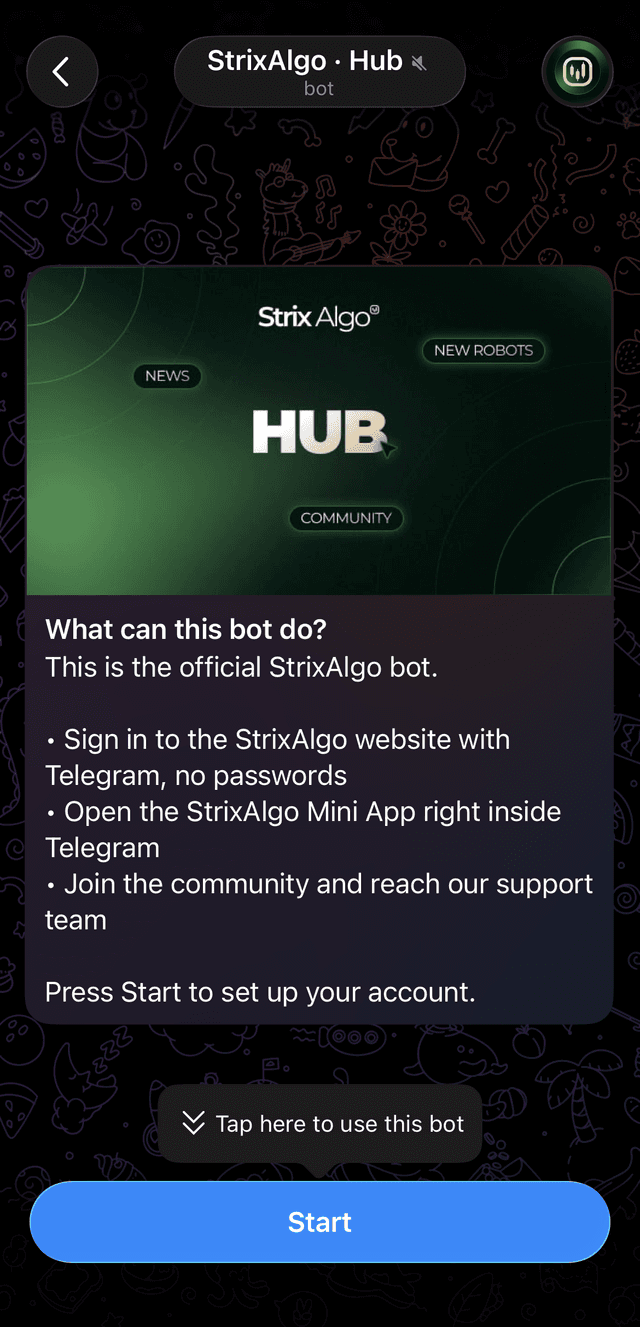
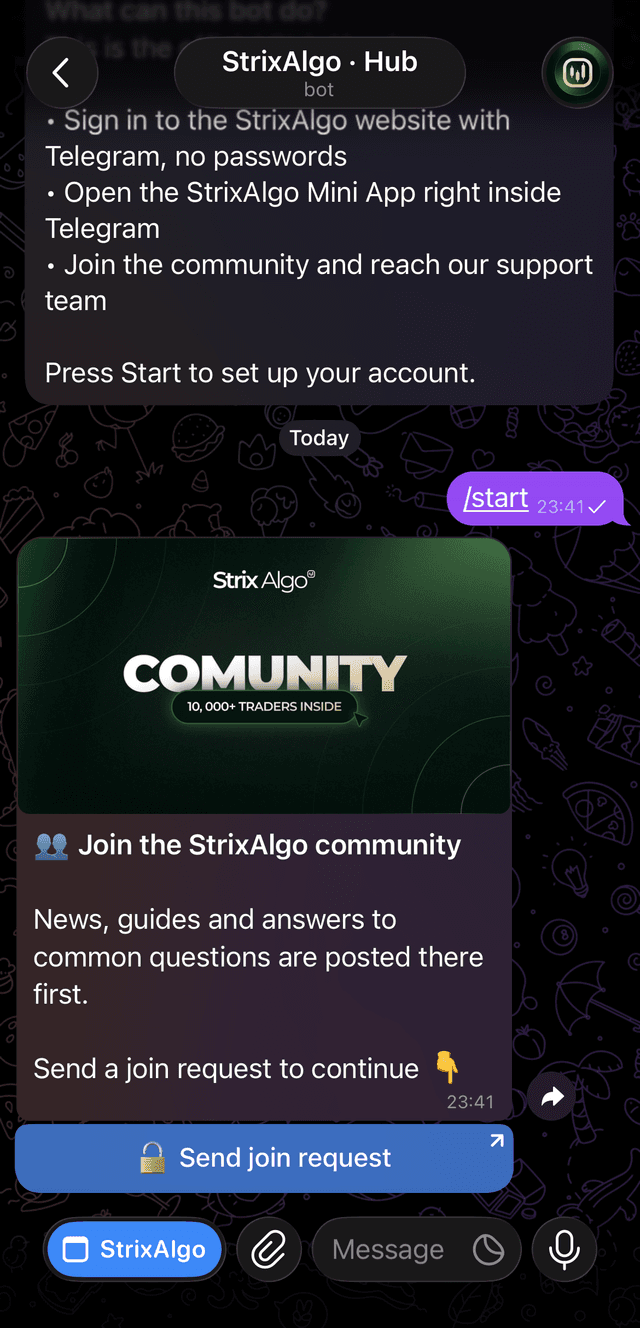
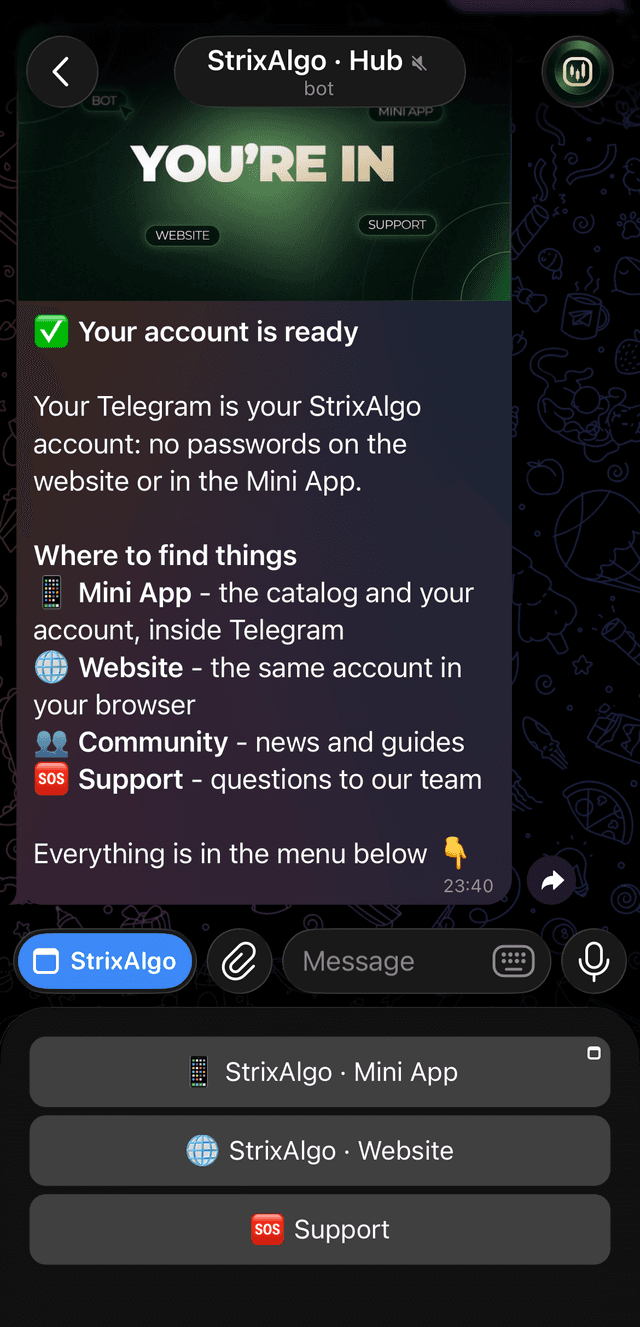
Your Telegram is your account - no passwords. Press Sign up on strixalgo.com, land in our bot, press Start, join the community - done. Your browser tab is signed in automatically.
Step 1 · On strixalgo.com + Telegram · ~2 minutes
Get your free 30-day license
On the robot's page, press Try it free - 30 days. The Connect screen opens on step 1 - press Get my free 30-day license. You'll be taken to a short chat with the robot's developer in Telegram - they issue your personal license key.
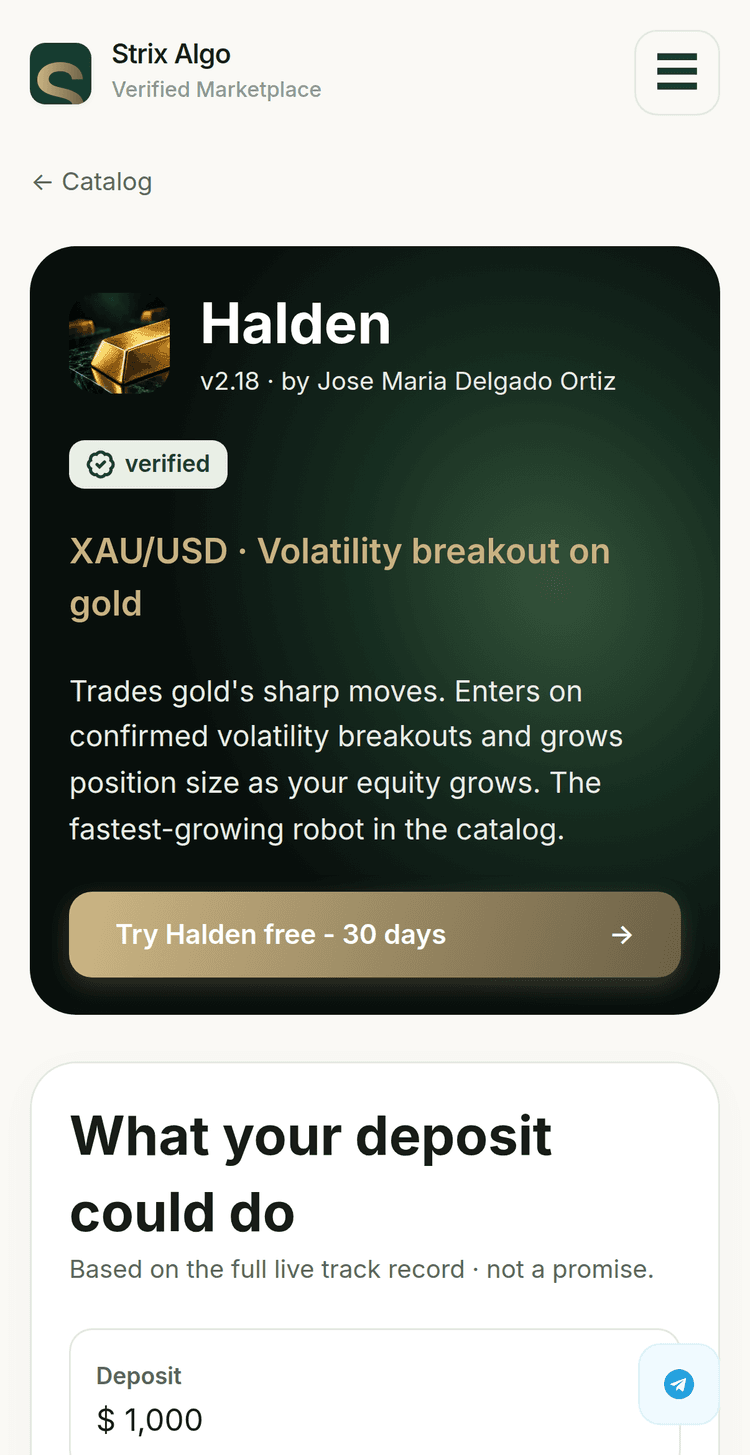
In the developer's bot, press Start - you get your license key right away: tap “Copy license”. After that you can talk to the developer directly in the same chat.
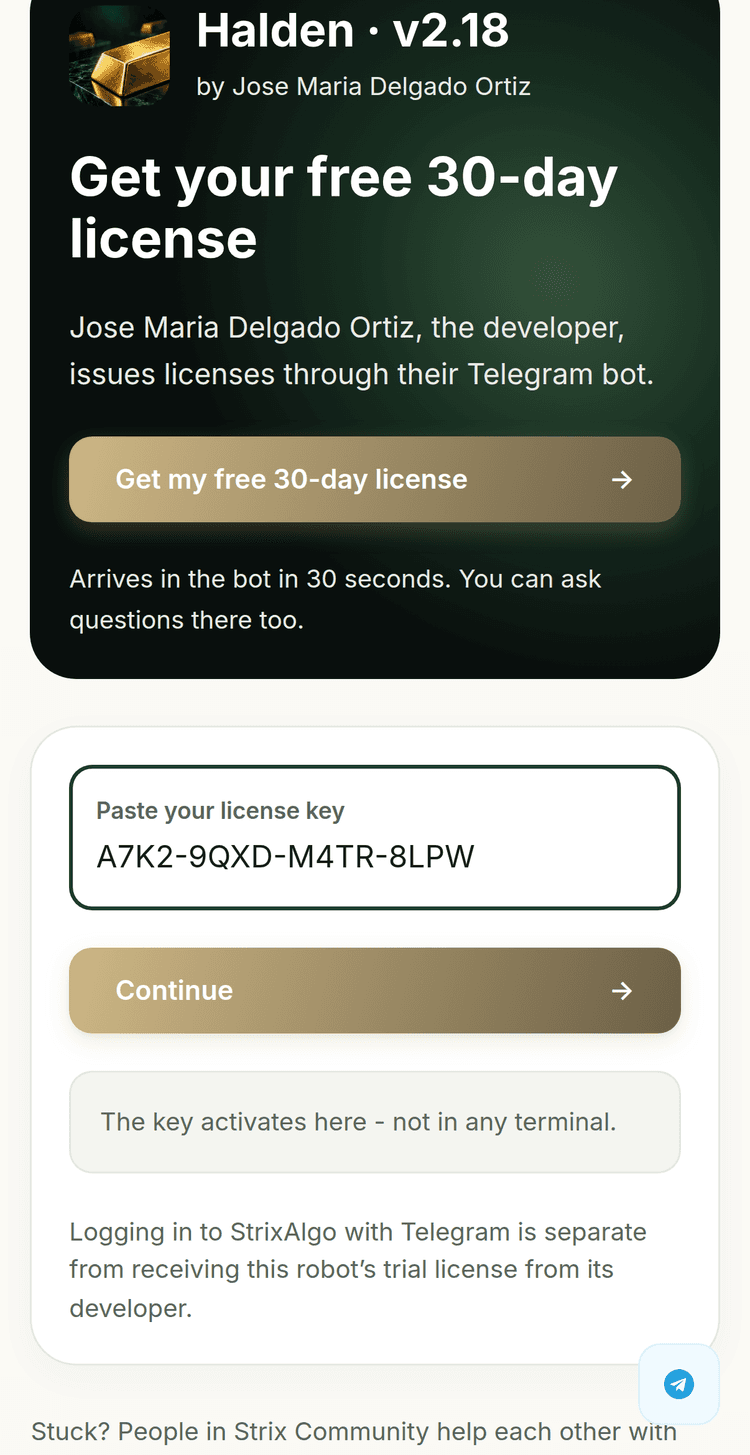
The key activates on the platform - not in any terminal. Now it needs a trading account to run on.
Step 2 · At the broker · a few minutes
Register your broker account at Tauro Markets
On the Connect screen, step 2, pick Tauro Markets and press Open account, get +35% bonus - it opens Tauro's sign-up through our partner link.
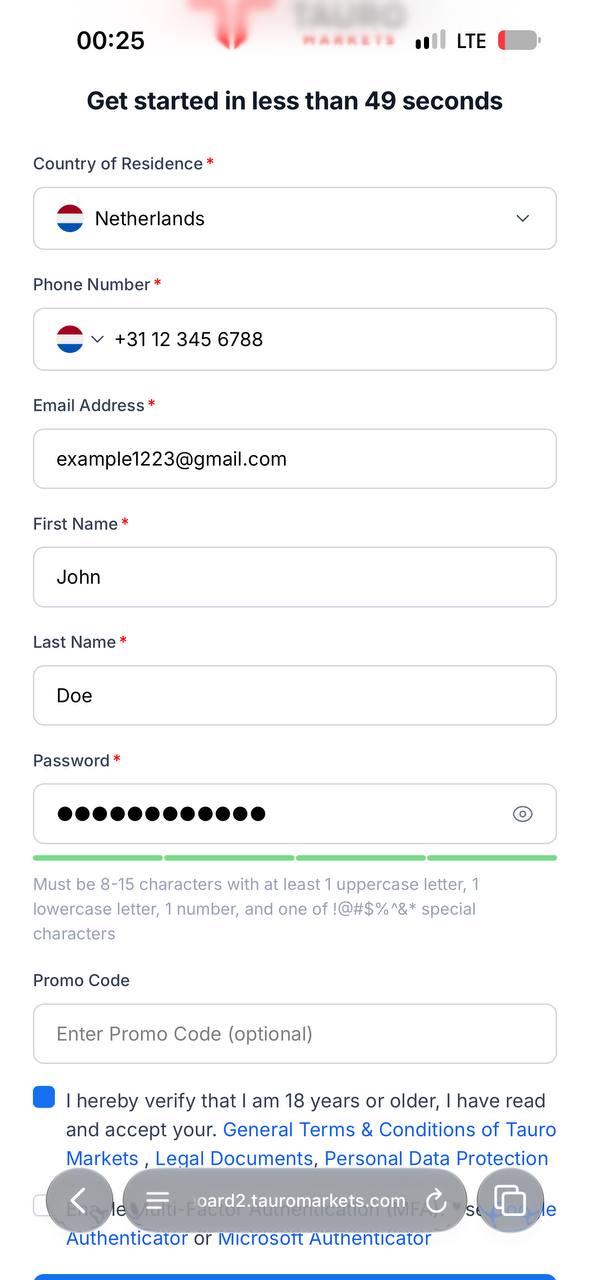
Use your real name - it must match your documents later.
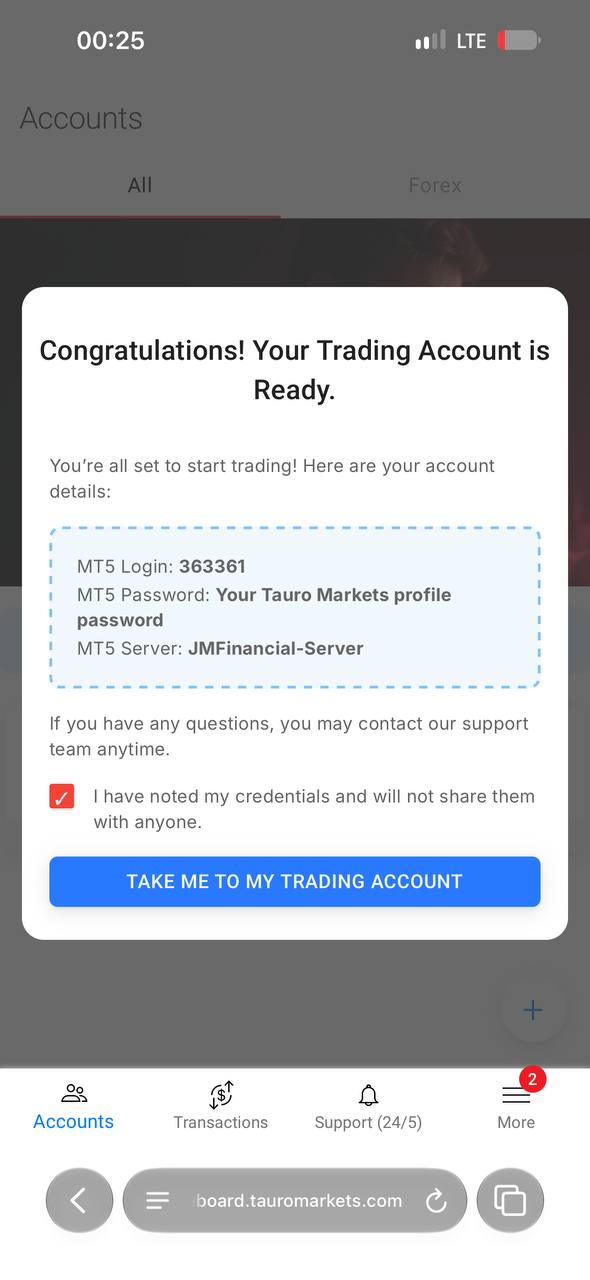
Write down the MT5 login number from that window - you'll enter it on the platform in Step 7.
Step 3 · At the broker · ~5 minutes
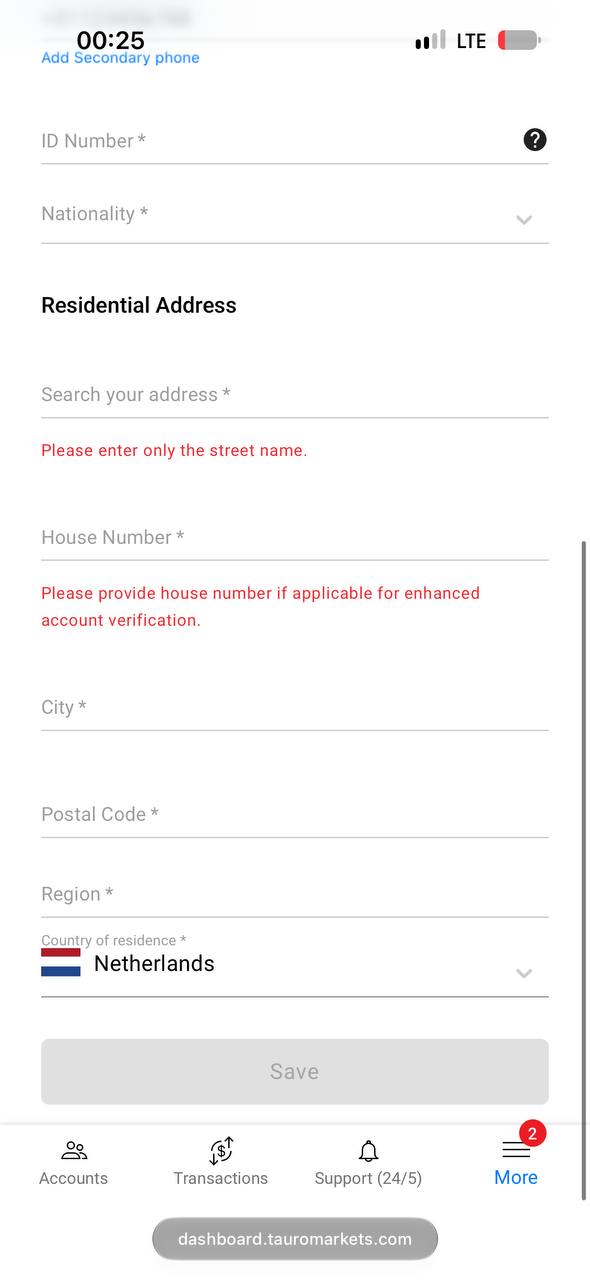
Complete your profile
Tauro asks for your identity details in your profile (More in the bottom menu). People rush this step and then wait the longest. Take a minute:
Use details exactly as in your document - the name must match the account.
If you're asked for a document photo, make sure it's sharp, all corners visible.
Step 4 · At the broker
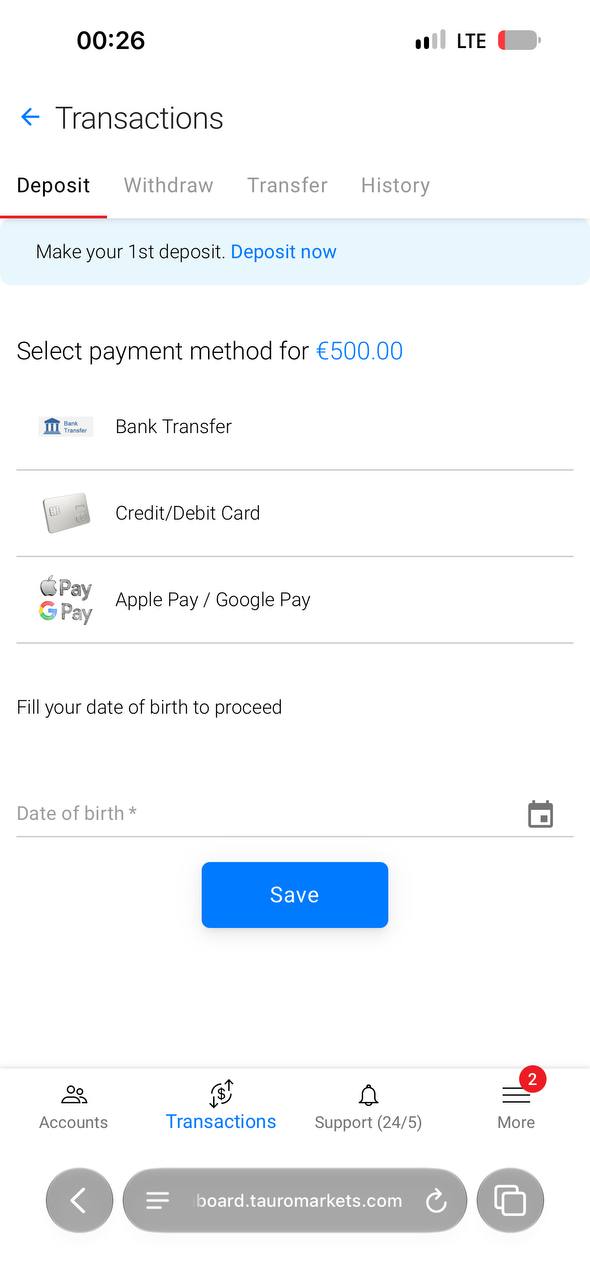
Fund your account
The robot needs money on the trading account to trade. Make your first deposit from the client area.
Step 5 · At the broker
Your +35% deposit bonus
Tauro Markets adds a bonus to your first deposit:
35% on a first deposit of up to $1,000€912, 45% on a larger one.
Questions about the bonus? Contact your robot's developer (the Telegram chat where you got your license key in Step 1) or Tauro Markets' support team to discuss the details.
Step 6 · Already on your screen
Your MT5 login
At Tauro you don't wait for an email - the three details were on the screen right after sign-up (2.2):
MT5 Login - your trading account number
MT5 Password - your Tauro Markets profile password
MT5 Server - JMFinancial-Server
Keep the login number - it's what you'll enter on the platform in the next step.
Step 7 · Back on strixalgo.com · ~1 minute
Connect it on the platform
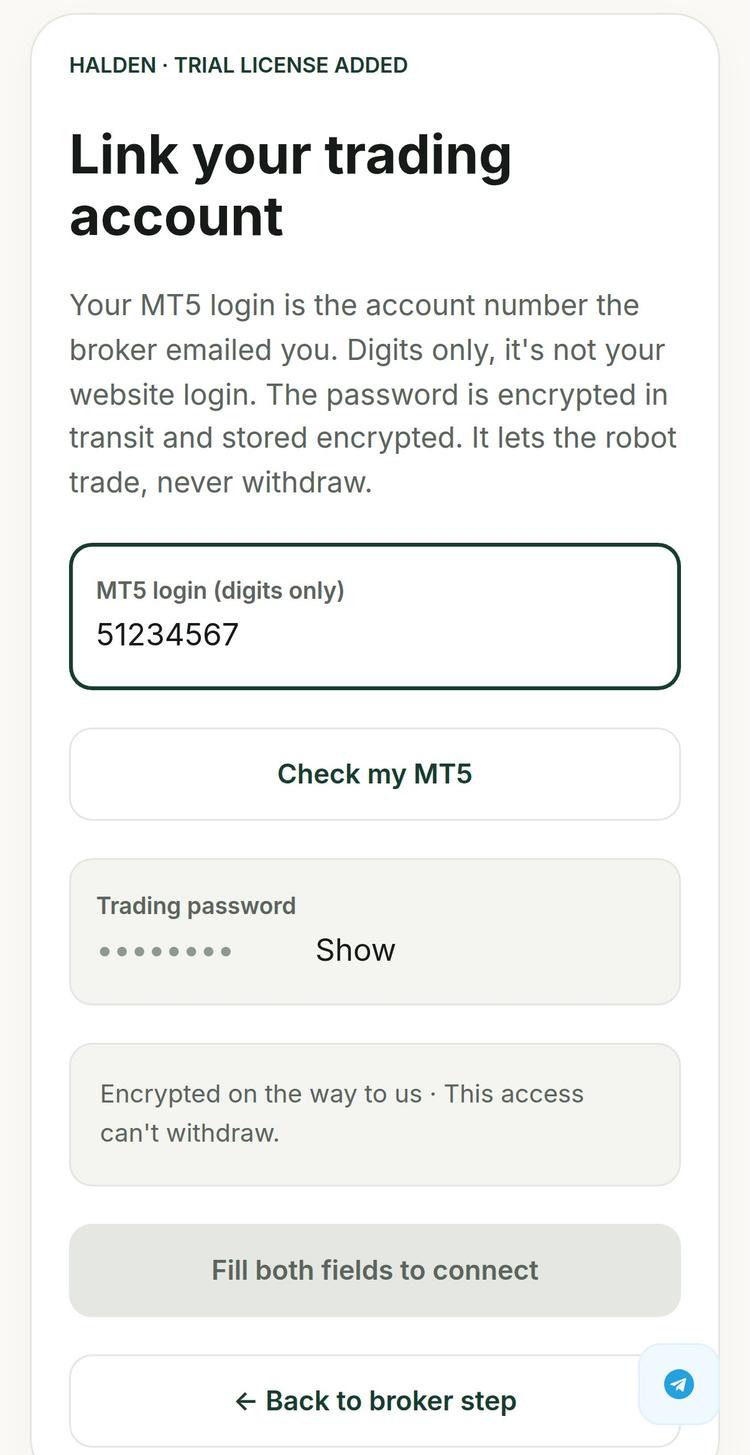
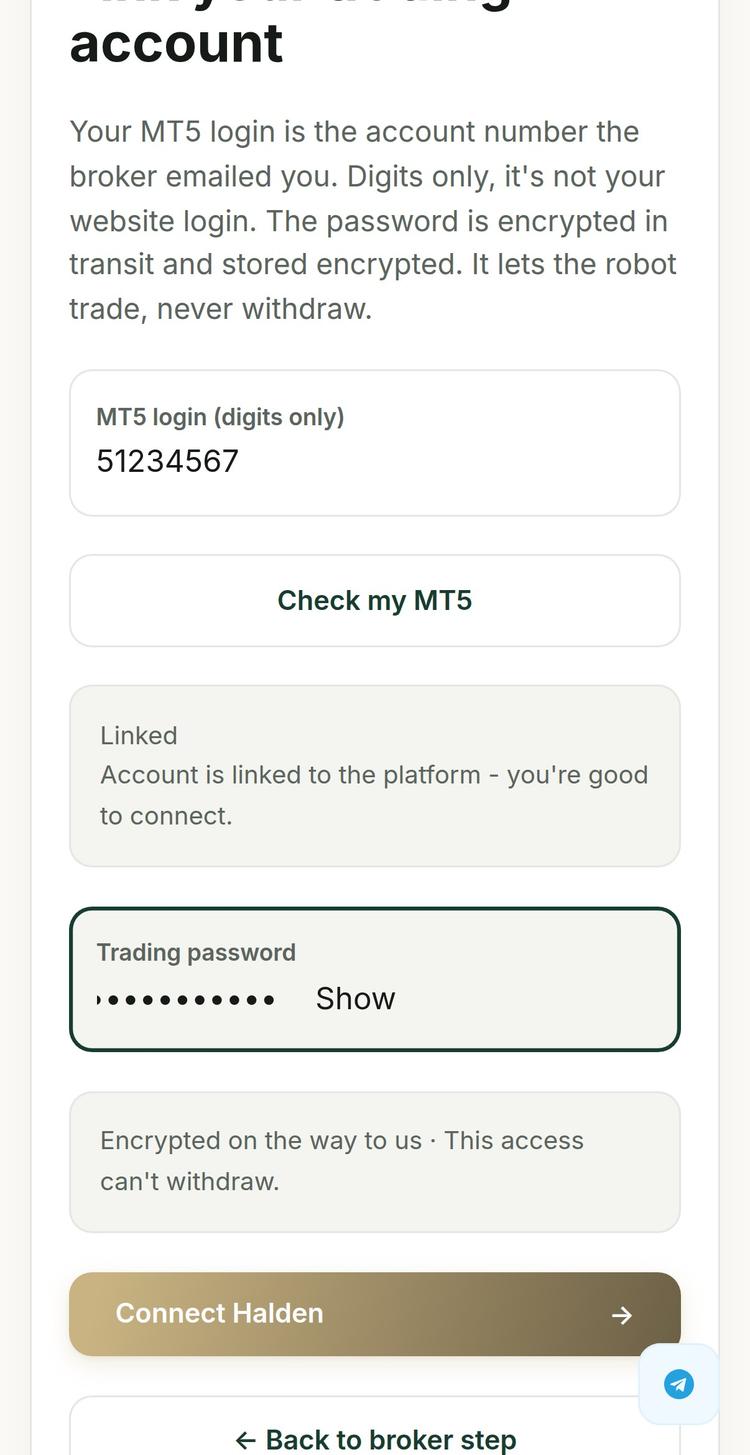
Back on the Connect screen: your license key is already in place from Step 1 - press My account is ready, last step. Then it's three moves: MT5 login → Check my MT5 → once it says Linked, enter the trading password and press the button you've been waiting for.
🎉 Done, your robot is live! It trades your own account at your own broker. The money never leaves it, the account is in your name, and only you can withdraw.
Quick FAQ
Why can't I just sign up in two clicks?
Licensed brokers must verify every client. It's a regulator rule. Signup is slower, but your funds are better protected.
Where is my money?
At the broker, on an account in your name. Never on our platform.
I can't find my MT5 login
It was on the screen right after sign-up (2.2). The MT5 password is your Tauro Markets profile password, the server is JMFinancial-Server.
Broker account vs trading account?
Broker account = your profile on the broker's website. Trading account (MT5) = the numbered account with money inside it. The platform connects to the trading account.
Do I need to download or install MT5?
No - not at all. That's the whole point of the platform: you never deal with terminals, downloads or setup. Your license key + MT5 login number is all it takes.
Can I run the trial on a demo account?
No. The robot works on live accounts only - there are no demo accounts in this flow.
Stuck on any step? Support is online 24/7. Real people, fast response.

Step-by-step guide · Broker: Tauro Markets
From trial key to a robot live on your account.
Free trial key → broker account → deposit → connect. Guides for the other brokers: Ultima Markets · StarTrader.
5 minutes of reading = 95% of the questions people get stuck on. Start with these two.
Before you start - what to expect
Simple, but not instant: sign-up, your profile details and your first deposit.
At Tauro Markets your MT5 trading account is created during sign-up - its login appears on screen straight away.
Profile and ID details are required by regulators. The broker isn't being difficult, and it's part of what keeps your money safe.
Two kinds of “account”. This is where most people get lost.
Two separate things:
1 · Broker account - your personal profile
Your client area on the broker's site - email + password, in your name. Verification, deposits and withdrawals happen here. It has no MT5 login number.
2 · Trading account - the MT5 account
Lives inside the broker account - the numbered account with the balance. Its MT5 login (a number) is what you connect to the platform.
What does it look like?
Broker account · your personal profile
John Smith
john@gmail.com · verified · one per person
Total at the broker
$27,580
the sum of the trading accounts inside
Inside it - trading accounts (MT5) × 2
RAW ECN · 1:500 · USD
Standard · 1:200 · USD
One broker account - the outer shell - holds any number of trading accounts inside. Each has its own MT5 number, settings and balance. That number is what you connect.
Your first trading account is created during signup.
Sign-up → MT5 account ready on screen → profile details + first deposit → trading
Note the MT5 login from that screen - it's what connects your robot.
Step 0 · In Telegram · ~15 seconds · Skip if you're already signed in
Your StrixAlgo account
Your Telegram is your account - no passwords. Press Sign up on strixalgo.com, land in our bot, press Start, join the community - done. Your browser tab is signed in automatically.
Step 1 · On strixalgo.com + Telegram · ~2 minutes
Get your free 30-day license
On the robot's page, press Try it free - 30 days. The Connect screen opens on step 1 - press Get my free 30-day license. You'll be taken to a short chat with the robot's developer in Telegram - they issue your personal license key.
In the developer's bot, press Start - you get your license key right away: tap “Copy license”. After that you can talk to the developer directly in the same chat.
The key activates on the platform - not in any terminal. Now it needs a trading account to run on.
Step 2 · At the broker · a few minutes
Register your broker account at Tauro Markets
On the Connect screen, step 2, pick Tauro Markets and press Open account, get +35% bonus - it opens Tauro's sign-up through our partner link.
Use your real name - it must match your documents later.
Write down the MT5 login number from that window - you'll enter it on the platform in Step 7.
Step 3 · At the broker · ~5 minutes
Complete your profile
Tauro asks for your identity details in your profile (More in the bottom menu). People rush this step and then wait the longest. Take a minute:
Use details exactly as in your document - the name must match the account.
If you're asked for a document photo, make sure it's sharp, all corners visible.
Step 4 · At the broker
Fund your account
The robot needs money on the trading account to trade. Make your first deposit from the client area.
Step 5 · At the broker
Your +35% deposit bonus
Tauro Markets adds a bonus to your first deposit:
35% on a first deposit of up to $1,000€912, 45% on a larger one.
Questions about the bonus? Contact your robot's developer (the Telegram chat where you got your license key in Step 1) or Tauro Markets' support team to discuss the details.
Step 6 · Already on your screen
Your MT5 login
At Tauro you don't wait for an email - the three details were on the screen right after sign-up (2.2):
MT5 Login - your trading account number
MT5 Password - your Tauro Markets profile password
MT5 Server - JMFinancial-Server
Keep the login number - it's what you'll enter on the platform in the next step.
Step 7 · Back on strixalgo.com · ~1 minute
Connect it on the platform
Back on the Connect screen: your license key is already in place from Step 1 - press My account is ready, last step. Then it's three moves: MT5 login → Check my MT5 → once it says Linked, enter the trading password and press the button you've been waiting for.
🎉 Done, your robot is live! It trades your own account at your own broker. The money never leaves it, the account is in your name, and only you can withdraw.
Quick FAQ
Why can't I just sign up in two clicks?
Licensed brokers must verify every client. It's a regulator rule. Signup is slower, but your funds are better protected.
Where is my money?
At the broker, on an account in your name. Never on our platform.
I can't find my MT5 login
It was on the screen right after sign-up (2.2). The MT5 password is your Tauro Markets profile password, the server is JMFinancial-Server.
Broker account vs trading account?
Broker account = your profile on the broker's website. Trading account (MT5) = the numbered account with money inside it. The platform connects to the trading account.
Do I need to download or install MT5?
No - not at all. That's the whole point of the platform: you never deal with terminals, downloads or setup. Your license key + MT5 login number is all it takes.
Can I run the trial on a demo account?
No. The robot works on live accounts only - there are no demo accounts in this flow.
Stuck on any step? Support is online 24/7. Real people, fast response.
Step-by-step guide · Broker: Tauro Markets
From trial key to a robot live on your account.
Free trial key → broker account → deposit → connect. Guides for the other brokers: Ultima Markets · StarTrader.
5 minutes of reading = 95% of the questions people get stuck on. Start with these two.
Before you start - what to expect
Simple, but not instant: sign-up, your profile details and your first deposit.
At Tauro Markets your MT5 trading account is created during sign-up - its login appears on screen straight away.
Profile and ID details are required by regulators. The broker isn't being difficult, and it's part of what keeps your money safe.
Two kinds of “account”. This is where most people get lost.
Two separate things:
1 · Broker account - your personal profile
Your client area on the broker's site - email + password, in your name. Verification, deposits and withdrawals happen here. It has no MT5 login number.
2 · Trading account - the MT5 account
Lives inside the broker account - the numbered account with the balance. Its MT5 login (a number) is what you connect to the platform.
What does it look like?
Broker account · your personal profile
John Smith
john@gmail.com · verified · one per person
Total at the broker
$27,580
the sum of the trading accounts inside
Inside it - trading accounts (MT5) × 2
RAW ECN · 1:500 · USD
Standard · 1:200 · USD
One broker account - the outer shell - holds any number of trading accounts inside. Each has its own MT5 number, settings and balance. That number is what you connect.
Your first trading account is created during signup.
Sign-up → MT5 account ready on screen → profile details + first deposit → trading
Note the MT5 login from that screen - it's what connects your robot.
Step 0 · In Telegram · ~15 seconds · Skip if you're already signed in
Your StrixAlgo account
Your Telegram is your account - no passwords. Press Sign up on strixalgo.com, land in our bot, press Start, join the community - done. Your browser tab is signed in automatically.
Step 1 · On strixalgo.com + Telegram · ~2 minutes
Get your free 30-day license
On the robot's page, press Try it free - 30 days. The Connect screen opens on step 1 - press Get my free 30-day license. You'll be taken to a short chat with the robot's developer in Telegram - they issue your personal license key.
In the developer's bot, press Start - you get your license key right away: tap “Copy license”. After that you can talk to the developer directly in the same chat.
The key activates on the platform - not in any terminal. Now it needs a trading account to run on.
Step 2 · At the broker · a few minutes
Register your broker account at Tauro Markets
On the Connect screen, step 2, pick Tauro Markets and press Open account, get +35% bonus - it opens Tauro's sign-up through our partner link.
Use your real name - it must match your documents later.
Write down the MT5 login number from that window - you'll enter it on the platform in Step 7.
Step 3 · At the broker · ~5 minutes
Complete your profile
Tauro asks for your identity details in your profile (More in the bottom menu). People rush this step and then wait the longest. Take a minute:
Use details exactly as in your document - the name must match the account.
If you're asked for a document photo, make sure it's sharp, all corners visible.
Step 4 · At the broker
Fund your account
The robot needs money on the trading account to trade. Make your first deposit from the client area.
Step 5 · At the broker
Your +35% deposit bonus
Tauro Markets adds a bonus to your first deposit:
35% on a first deposit of up to $1,000€912, 45% on a larger one.
Questions about the bonus? Contact your robot's developer (the Telegram chat where you got your license key in Step 1) or Tauro Markets' support team to discuss the details.
Step 6 · Already on your screen
Your MT5 login
At Tauro you don't wait for an email - the three details were on the screen right after sign-up (2.2):
MT5 Login - your trading account number
MT5 Password - your Tauro Markets profile password
MT5 Server - JMFinancial-Server
Keep the login number - it's what you'll enter on the platform in the next step.
Step 7 · Back on strixalgo.com · ~1 minute
Connect it on the platform
Back on the Connect screen: your license key is already in place from Step 1 - press My account is ready, last step. Then it's three moves: MT5 login → Check my MT5 → once it says Linked, enter the trading password and press the button you've been waiting for.
🎉 Done, your robot is live! It trades your own account at your own broker. The money never leaves it, the account is in your name, and only you can withdraw.
Quick FAQ
Why can't I just sign up in two clicks?
Licensed brokers must verify every client. It's a regulator rule. Signup is slower, but your funds are better protected.
Where is my money?
At the broker, on an account in your name. Never on our platform.
I can't find my MT5 login
It was on the screen right after sign-up (2.2). The MT5 password is your Tauro Markets profile password, the server is JMFinancial-Server.
Broker account vs trading account?
Broker account = your profile on the broker's website. Trading account (MT5) = the numbered account with money inside it. The platform connects to the trading account.
Do I need to download or install MT5?
No - not at all. That's the whole point of the platform: you never deal with terminals, downloads or setup. Your license key + MT5 login number is all it takes.
Can I run the trial on a demo account?
No. The robot works on live accounts only - there are no demo accounts in this flow.
Stuck on any step? Support is online 24/7. Real people, fast response.